Teams, Tasks and dark mode
One Tasks page for everything assigned to you and your team, sub-teams with their own logos, and a dark mode.
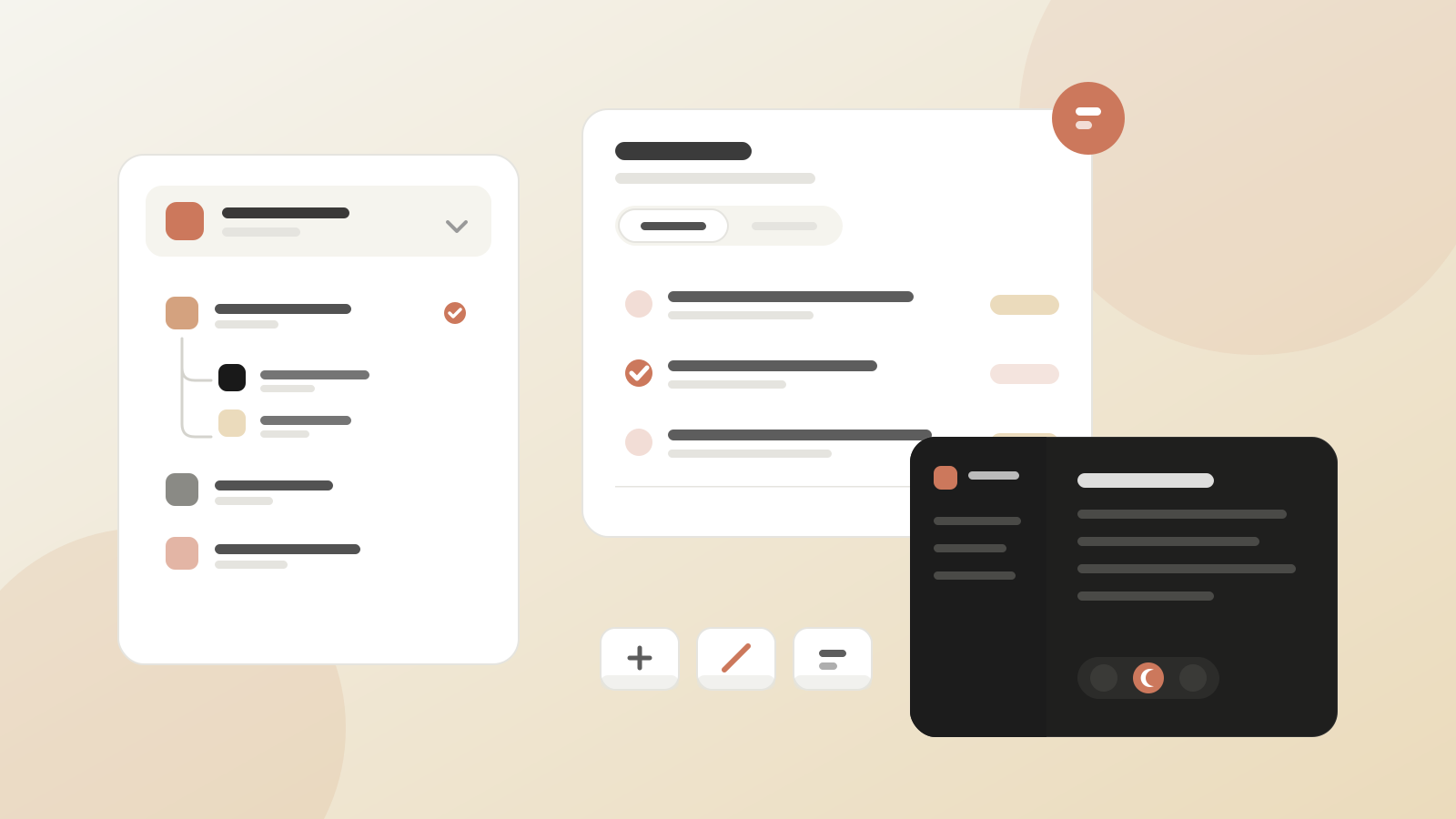
One Tasks page for everything on your plate
Tasks now has two views. My tasks is everything assigned to you, and the sidebar shows how many are still open.
Admins and team managers also get Assigned: the team’s capture sessions, quick sessions and review requests in one list, with Assign new task to ask an expert for an interview or a review.
Assigned tasks used to live in Settings. They moved here, and old links still arrive in the right place.
Teams that are easy to tell apart
A team can now live under another team. A sub-team is a full team with its own people, documents and wiki; the parent only decides where it is listed. Managers of the parent can add sub-teams.
The team selector in the sidebar shows each team with a tinted initial and your role in it, and it filters once you have more than six teams.
Give each team a logo and each person a profile picture, from a colour and an icon or a letter. Personal tasks now follow the team you are working in.
Dark mode, when you want it
Choose light, dark or system in Settings, or flip it with ⌘⇧L (Ctrl+Shift+L on Windows). The editor and the 3D knowledge map follow the theme.
Move around faster
New keyboard shortcuts: jump to your last page, copy the page URL, go back and forward, peek at content above or below, and toggle dark mode. Press ⌘/ to see them all.
The inbox is now a floating card, with rows grouped, unread dots and an All / Unread filter.
You choose what Create offers
In Settings → Org settings → Features, admins pick which document types Create offers the organization: handover, SOP, onboarding guide, training module or deck. At least one stays on, and you can ask the Tacivo team for a type that doesn’t exist yet.
The People list is now sorted by role and shows each person’s role in the team you are viewing.